DGPikDGPik
  • Wedding Album PSD
  • Photoshop Add-ons
    • Photoshop Plugins/Panel
    • Photoshop Gradients
    • Camera Raw Presets
    • Photoshop Brushes
    • Photoshop Actions
    • Layer Styles
  • Lightroom Presets
  • Free Mockups
  • Backgrounds
  • Photo Overlays
  • LUTs
DGPikDGPik
Search
Follow US
Copyright © 2014-2023 Ruby Theme Ltd. All Rights Reserved.
Photo EffectPhoto Overlays

20 White & Pink Falling Flower Petal Photo Overlays

Published May 27, 2023
SHARE

20 White & Pink Falling Flower Petal Photo Overlays Free Download A collection of 20 flower petal Photo Overlays to add to your designs and photos. Are a versatile set of overlays that add a touch of beauty to your images.20 White & Pink Flower Petal Photo Overlays.

With 20 overlays featuring delicate white and pink flower petals, they bring a soft and romantic vibe to your photos. Enhance your portraits, wedding shots, or nature photography with these lovely overlays.You Can Also Download 41 Falling Rose Petals Photo Overlays

Included in this set:

• 20 .PNG Photo Overlays – white and delicate pink, apple and cherry blossom photo overlays (transparent backgrounds)
• High resolution (5100 x 3450 px – 300 dpi)
• Compatible with any software that allows you to work with layers (Photoshop, Photoshop Elements, Paint Shop Pro, etc).

Software Compatibility:

.PNG files will work with most graphic software.

See what you will be able to do

Below you can find Preset Power Examples from each Package.

Download the File Easily From the Download Link Given Below

Password is: dgpik.com

DOWNLOAD NOW20 White & Pink Falling Flower Petal Photo Overlays

How to Use Overlays

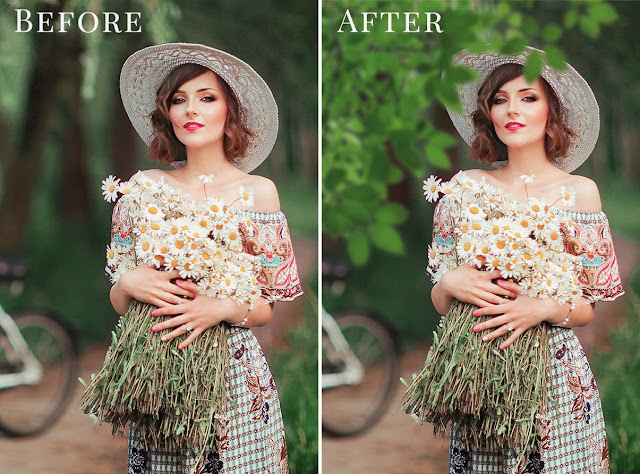
Overlays are a powerful tool used in various applications, such as image editing, video production, streaming, and graphic design. They allow you to add additional layers of content on top of an existing image or video. Here’s a general guide on how to use overlays:
  1. Understand the Overlay Concept: Familiarize yourself with the concept of overlays. Overlays are separate layers of content that can be placed on top of a base image or video. They can be images, text, shapes, animations, or even videos themselves. Overlays are typically transparent or semi-transparent, allowing the underlying content to show through.
  2. Choose an Appropriate Software: Depending on your specific needs, choose software that supports overlays. Popular choices include Adobe Photoshop, Adobe Premiere Pro, OBS Studio, and Canva. Different software may have different interfaces and specific steps, but the basic principles remain the same.
  3. Prepare Your Base Content: Before adding overlays, ensure you have your base image or video ready. This will be the underlying content onto which you’ll place the overlays.
  4. Create or Find Overlays: Next, gather or create the overlays you want to use. These can be images, graphics, text elements, or animations. You can either create them yourself using graphic design software or find pre-made overlays from various online resources.
  5. Open Your Editing Software: Launch your chosen software and open the project or file you’re working with. Import your base content and overlays into the software. Make sure you have separate layers for the base content and each overlay.
  6. Arrange Layers: In the software, arrange the layers so that the base content is at the bottom and the overlays are stacked on top. You can usually do this by dragging and dropping the layers in the software’s layer panel.
  7. Position and Resize Overlays: Select each overlay layer and adjust its position and size as desired. You can typically do this by using the transformation tools (e.g., move, resize, rotate) provided by the software. Preview the result to ensure the overlays are placed correctly.
  8. Customize Overlay Properties: Depending on your software, you may have various options to customize the appearance of overlays. This can include adjusting transparency, blending modes, color correction, text formatting, or applying effects. Experiment with these options to achieve the desired look.
  9. Preview and Fine-tune: Regularly preview your project to see how the overlays interact with the base content. Make any necessary adjustments to the overlay properties or their placement to achieve the desired visual effect.
  10. Save or Export: Once you’re satisfied with the overlay arrangement, save your project or export the final result. Choose the appropriate file format and settings based on your intended use, such as JPEG, PNG, or video formats.

Remember, the exact steps may vary depending on the software you’re using, so it’s always recommended to refer to the software’s documentation or online tutorials for specific instructions.

Share This Article
Facebook Twitter Copy Link Print

Popular Posts

2025 One Click Pro 4.8 & Album Quicker 6.8
Album Design Software
The Crystalline Collection Photoshop Action Free
The Crystalline Collection Photoshop Action
Photo Effect
THE FLORA COLLECTION Photoshop Action
The Flora Collection Photoshop Action
Photo Effect
THE WANDERLUST COLLECTION Photoshop Action
The Wanderlust Collection Photoshop Action
Photo Effect
THE ROYAL COLLECTION Photoshop Action
The Royal Collection – Photoshop Action Preset
Photo Effect

Categories

  • 12×36 Spread Design
  • 12×36 Templates
  • 16×24 Album Design
  • Adobe Photoshop Tutorial
  • Album Design
  • Album Design Software
  • Album DM Pack
  • Alphabet Letters
  • Anniversary Gifts
  • Artistic Editing
  • Baby Album PSD
  • Baby Photography
  • Backgrounds
  • Banners
  • Birthday Album PSD
  • Birthday Collage
  • Birthday Design
  • Birthday Templates
  • Branding
  • Business Card Psd
  • Camera Raw Assets
  • Camera Raw Presets
  • Camera Raw Tools
  • Cinematic Design
  • Clip Part
  • Close-up Designs
  • Collage Design
  • Creative Design
  • Digital Assets
  • Digital Backgrounds
  • Digital Bundle
  • Digital Downloads
  • Digital Invitations
  • Digital Products
  • Digital Stationery
  • Digital Studio Tools
  • Double Exposure PSD
  • Facebook Covers
  • Floral Album Design
  • Flyers
  • Fonts
  • Format Design
  • Gift Items
  • Graphic Design
  • Graphic Design Assets
  • ID Card Design
  • Illustrator Files
  • Indian Wedding Designs
  • Indian Wedding Vidhi
  • Inner Sheet Templates
  • Instagram Templates
  • Invitation Branding
  • Kids Album Design
  • Kids Modeling PSD
  • Kids Photography
  • Kids Studio Design
  • Large Format Designs
  • Layer Styles
  • Lettering Font Png
  • Lightroom Presets
  • Logo Design
  • LUTs
  • Marathi Wedding PSD
  • Mobile Invitations
  • Mug Design PSD
  • Photo Collage Frame
  • Photo Effect
  • Photo Frame PSD
  • Photo Frames
  • Photo Overlays
  • Photography Assets
  • Photography Automation
  • Photography Marketing
  • Photography Presets
  • Photoshop Actions
  • Photoshop Add-ons
  • Photoshop Brushes
  • Photoshop Gradients
  • Photoshop Plugins
  • Photoshop Plugins/Panel
  • Photoshop Shapes
  • Photoshop Templates
  • Photoshop Tools
  • Photoshop Video Tutorial
  • PNG Files
  • Portfolio Packs
  • Portrait Photography
  • Portrait Tools
  • Pre-Wedding PSD
  • Premium Prouduct
  • Psd Files
  • Psd Mockup
  • Save the Date
  • Social Media Design
  • Software
  • Stock Photo
  • Studio Background
  • Studio Backgrounds
  • Sublimation Printing
  • Text Effects
  • Textures
  • Transitions Pack
  • Uncategorized
  • Vector Files
  • Wedding Album Inner PSD
  • Wedding Album PSD
  • Wedding Cover PSD
  • Wedding Design
  • Wedding Editing
  • Wedding Editing Tools
  • Winter Graphics Bundle

You Might Also Like

Bokehlicious Photoshop Actions

Erotique Photoshop Actions

Photo Effect
12 Stamp Cloud Brushes for Photoshop

Clouds Stamp Brushes Vol.4

Photo Effect
Liquify Photoshop Action

Liquify Effect Photoshop Action

Photo Effect
86 Butterflies Photo Overlays

Free 86 Butterflies Photo Overlays

Clip Part
© 2016-2025 All rights reserved DGPik.com
  • Contact us
  • DMCA
  • Privacy Policy
  • Terms and Conditions
Welcome Back!

Sign in to your account

Username or Email Address
Password

Lost your password?